Team Management
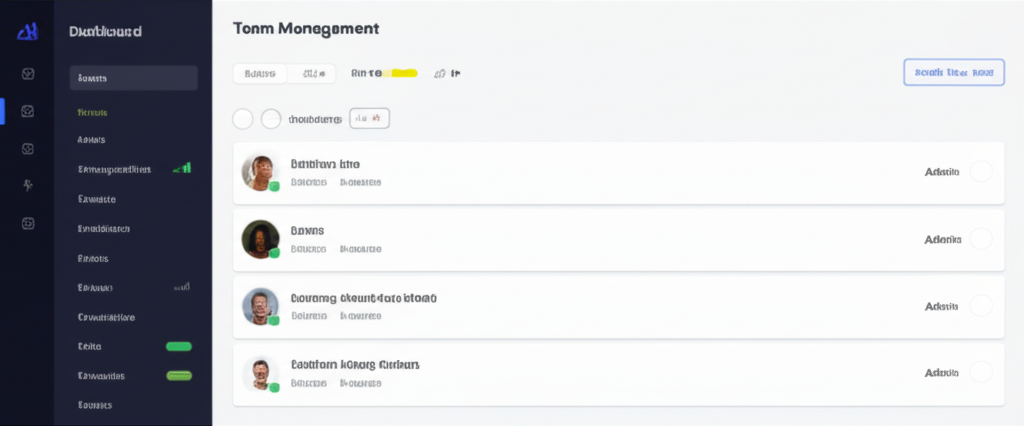
Team Management Dashboard
The Team Management Dashboard provides a comprehensive interface for viewing and managing your team members. You can see all current team members, their roles, and manage pending invitations.
Key Features
- View all team members and their current roles
- Change member roles (admin, editor, viewer)
- Remove members from your team
- View, resend, and cancel pending invitations
- Filter and search for specific team members
How to Access
Navigate to Dashboard → Team to access the team management dashboard.
Inviting Team Members
You can invite team members during the onboarding process or at any time from the team management dashboard. Each invitation includes a specific role assignment.
Invitation Process
- Enter the email address of the person you want to invite
- Select the appropriate role (admin, editor, viewer)
- Click "Send Invitation"
- The invitee will receive an email with instructions to join
Invitation Management
You can view all pending invitations, resend invitations if needed, or cancel invitations from the team management dashboard.
Role Management
Site Markup Tool offers three distinct roles to help you manage access and permissions within your team.
Available Roles
- AdminFull access to all projects. Can manage team members, create/delete projects, and modify all settings.
- EditorCan create and edit markups, add annotations, and participate in all collaborative features.
- ViewerRead-only access to projects. Can view markups and annotations but cannot make changes.
Changing Roles
Project admins can change a team member's role at any time from the team management dashboard. Click on the role dropdown next to a user's name and select the new role.
Invitation Emails
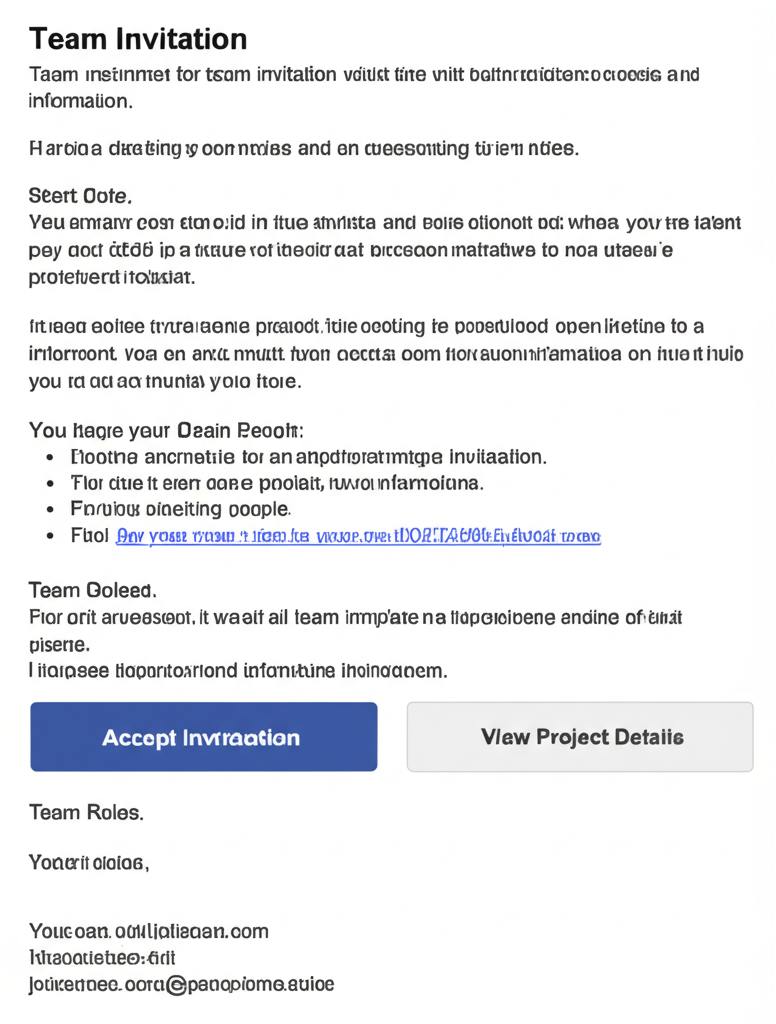
When you invite team members, they receive a professionally designed email with all the information they need to join your project.
Email Content
- Inviter's name and email
- Project name and description
- Assigned role and its permissions
- Clear call-to-action button to accept the invitation
- Fallback link for email clients that don't support buttons
Invitation Expiration
Invitations expire after 7 days for security reasons. If an invitation expires, you can easily resend it from the team management dashboard.