Project Templates
Available Templates
Site Markup Tool comes with several pre-built templates to help you get started quickly. Each template is designed for specific use cases and includes relevant pages and annotation types.
Standard Templates
- Website RedesignIncludes Home, About, Products, and Contact pages with design feedback annotations.
- Mobile AppIncludes Login, Dashboard, Profile, and Settings pages with UI/UX feedback annotations.
- Marketing CampaignIncludes Landing Page, Email Template, Social Media, and Ads pages with branding annotations.
- E-commerce StoreIncludes Product Listing, Product Detail, Cart, and Checkout pages with conversion optimization annotations.
- Blank ProjectStart with a clean slate and customize everything from scratch.
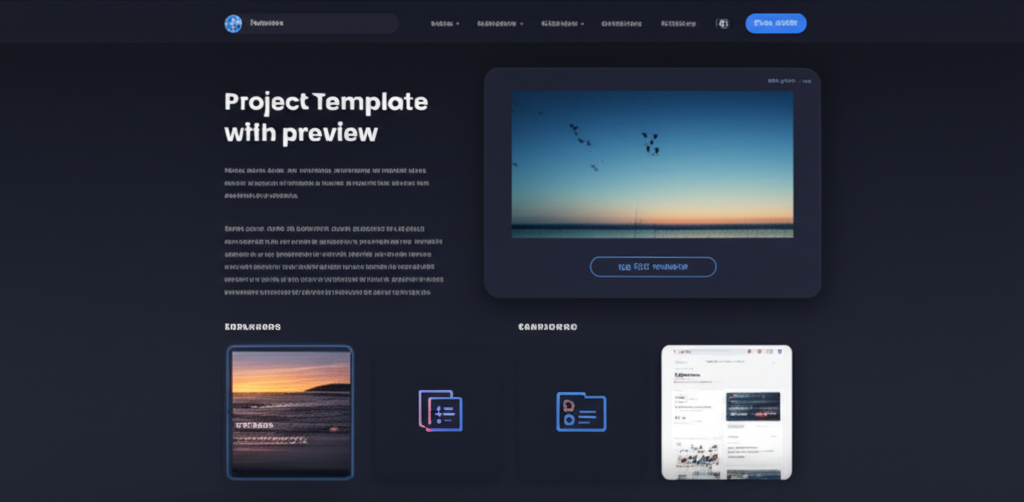
Template Previews
Before selecting a template, you can preview its contents to ensure it meets your needs. The preview shows all included pages and annotation types.
Preview Features
- Visual thumbnail of the template
- Detailed description of the template's purpose
- List of all included pages
- Default annotation types
- Interactive tabs to explore different aspects of the template
How to Preview
Click the "Preview" button on any template card to open the detailed preview modal. You can navigate between tabs to explore different aspects of the template.

Using Templates
Templates provide a starting point for your projects, saving you time and ensuring consistency across your work.
When to Use Templates
- Starting a new project with common requirements
- Maintaining consistency across multiple similar projects
- Quickly setting up standard pages and annotation types
- Onboarding new team members with a familiar structure
Selection Process
- Browse available templates during project creation or onboarding
- Preview templates to see their contents
- Select the most appropriate template for your needs
- Customize the template after project creation if needed
Creating Custom Templates
Enterprise users can create and save custom templates based on their specific needs and workflows.
Custom Template Process
- Create a project with your desired structure and annotation types
- Navigate to Project Settings → Save as Template
- Provide a name, description, and optional thumbnail
- Choose whether to make the template available to all team members
- Save the template for future use
Template Management
Admins can manage custom templates from the Template Management section in the admin dashboard. This includes editing, deleting, and controlling access to templates.
Customizing Templates
After selecting a template, you can customize it to better fit your specific project requirements.
Customization Options
- Add or remove pages
- Modify default annotation types
- Adjust project settings and permissions
- Customize page layouts and structures
Best Practices
Start with the closest matching template and then customize it, rather than starting from scratch. This approach saves time while still allowing for personalization.